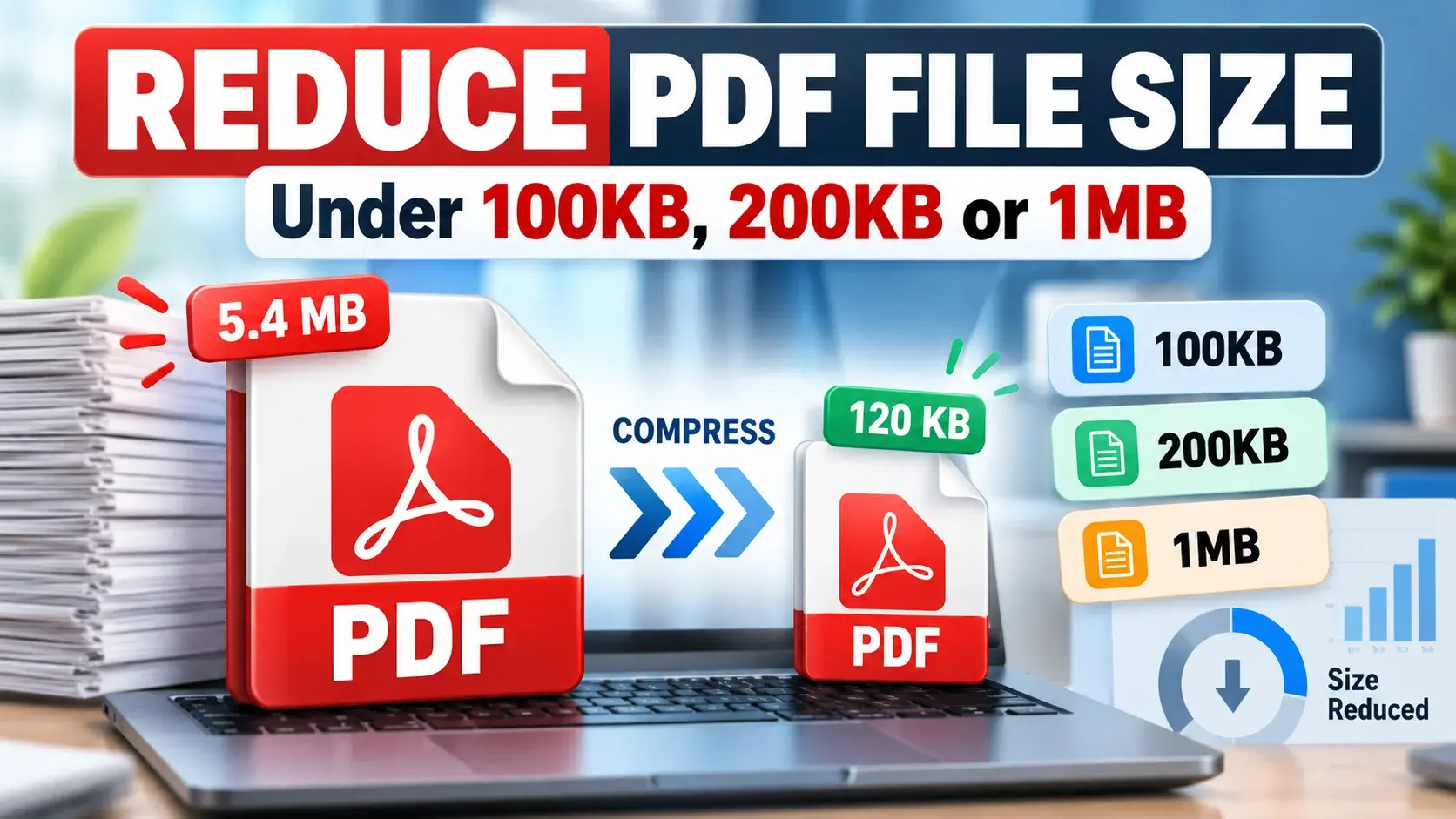
Your form says "maximum file size 100KB" and your PDF is 2MB. Or your email won't send because the attachment is too big. The good news: you can reduce PDF size in under a minute, for free, without installing anything.
Quick answer: how to reduce PDF size
- Open our free Compress PDF tool.
- Upload your PDF.
- Choose a compression level (Medium is best for most files).
- Download your smaller PDF.
Need an exact size, like 100KB or 200KB? Want to keep the quality high? Or just wondering why the file is so big? Keep reading. This guide covers all of it, on a computer and on your phone.
Why Is My PDF So Large?
A PDF with only a few pages can still be huge. Here are the most common reasons:
- High-resolution images or phone photos. Modern phone cameras take very detailed photos. Each one can add several megabytes.
- Scanned pages. A scanned page is not text. It is a full-page image, so a 10-page scan is really 10 large pictures.
- Embedded fonts. Many PDFs include full font files so the text looks the same on every device.
- Many pages or repeated images. Logos or backgrounds repeated on every page add up.
- Leftover editing data. Some programs save old versions, comments and hidden data inside the file.
In most cases, images are the main cause. That is why compression works so well: it makes the images smaller while keeping the text sharp.
How to Reduce PDF Size Online (Step by Step)
Step 1: Open the Compress PDF tool
Go to the Compress PDF page. It works in any browser on Windows, Mac, Android or iPhone.
Step 2: Upload your PDF
Click the upload button or drag your file into the box.
Step 3: Choose a compression level
Most compressors give you a choice between a smaller file and better quality. Use this as a guide:
| Level | File size | Quality | Best for |
|---|---|---|---|
| Low | Slightly smaller | Best | Reports, charts, documents you will print |
| Medium (recommended) | Much smaller | Good | Email, uploads, most everyday files |
| High | Smallest | Lower (images may look soft) | Strict limits like 100KB or 200KB |
Step 4: Download your smaller PDF
Check the new file size. Open the file and zoom in to make sure the text is still easy to read before you submit it.
How to Compress a PDF to 100KB or 200KB
Many job, admission and government portals only accept small files, often 100KB or 200KB. Follow these steps in order and stop as soon as your file is small enough:
- Use High compression in the Compress PDF tool.
- Turn it black and white. Color scans are much bigger. Use Grayscale PDF, then compress again.
- Remove pages you don't need. Use Remove Pages to keep only what the form asks for.
- Split the file. If the portal allows more than one upload, use Split PDF and upload each part.
- Scan again at a lower setting. Scan in black and white at about 150 DPI instead of a color photo.
Always check before you submit: open the file, zoom in, and make sure names, numbers and stamps are clear. A blurry document can get your application rejected.
How to Reduce PDF Size Without Losing Quality
Compression mostly affects images. Text and lines usually stay sharp. These tips help you keep the quality you need:
- Start with Medium, not High. Only go higher if the file is still too big.
- Make images smaller before you create the PDF. Use our Image Compressor first, then JPG to PDF.
- Pick the right resolution. About 150 DPI is enough for screens and email. Keep 300 DPI only for printing.
- Don't compress the same file again and again. Each round lowers image quality a little more. Go back to the original instead.
- Re-save text documents instead of scanning them. If you have the Word or Google Docs file, save it as PDF directly. A "real" text PDF is much smaller than a scan.
- Delete pages you don't need with Remove Pages.
How to Reduce PDF Size Without an Online Tool
If your document is private, or you have no internet, you can use programs you may already have.
Microsoft Word (Windows)
- Open your document and click File → Save As.
- Choose PDF as the file type.
- Under "Optimize for", select Minimum size (publishing online).
- Click Save.
Preview (Mac)
- Open the PDF in Preview.
- Click File → Export.
- In Quartz Filter, choose Reduce File Size, then save.
Preview's filter can make images look very blurry. Check the result before you send it.
Adobe Acrobat
Acrobat has a "Reduce File Size" option and an "Optimize PDF" option with more control. The advanced settings need the paid version.
How to Reduce PDF Size on Your Phone
You don't need an app. Open the Compress PDF tool in Chrome or Safari, upload the PDF from your phone, choose a level, and download it.
Tips for smaller scans from your phone
- Use a scanner app's document mode instead of a normal photo.
- Choose black and white for text documents.
- Scan only the pages you need.
- Good light and a flat page give clearer text, so you can compress more without losing readability.
- Or use our Scan to PDF tool.
When You Should NOT Compress a PDF
- Print-ready files. Printers need full-quality images. Send the original to a print shop.
- Digitally signed PDFs. Changing a signed PDF can make the digital signature invalid. Compress first, then sign.
- Legal or archive copies. Keep an original, full-quality copy and send a compressed copy only when needed.
Is It Safe to Compress a PDF Online?
OnlineConverter uses a secure HTTPS connection, so your file is encrypted while it is uploaded and downloaded. For very sensitive documents, such as contracts or ID cards, you can also use the offline methods above.
Frequently Asked Questions
How can I reduce PDF size for free?
Upload your file to a free online tool such as our Compress PDF tool, choose a compression level, and download the smaller file. You can also use Word's "Minimum size" option or Preview on a Mac.
How do I compress a PDF to 100KB?
Use High compression first. If the file is still too big, convert it to grayscale, remove pages you do not need, or split it into smaller files. A one- or two-page scan can usually go under 100KB; a long scan often cannot without losing readability.
Why is my PDF so large?
Most large PDFs contain high-resolution images or scanned pages. Embedded fonts, many pages, duplicate images and leftover editing data also add size.
Does compressing a PDF reduce quality?
It can. Compression mainly lowers image quality. Text usually stays sharp. Start with a low or medium level and only use high compression when you need a very small file.
How do I reduce PDF size on my phone?
Open the Compress PDF tool in your phone's browser, upload the file from your phone, choose a level and download the result. No app is needed.
Can I reduce PDF size without software?
Yes. An online tool works in your browser with nothing to install. On a computer you can also use tools you already have, such as Microsoft Word or Preview on a Mac.
Summary
- Big PDFs are usually caused by images and scanned pages.
- Medium compression is the best balance of size and quality for most files.
- For 100KB or 200KB limits: use High compression, grayscale, and remove or split pages.